To start creating Surveys, head to Care > Tools > Survey. Click on the Create button on the upper left side of your screen.
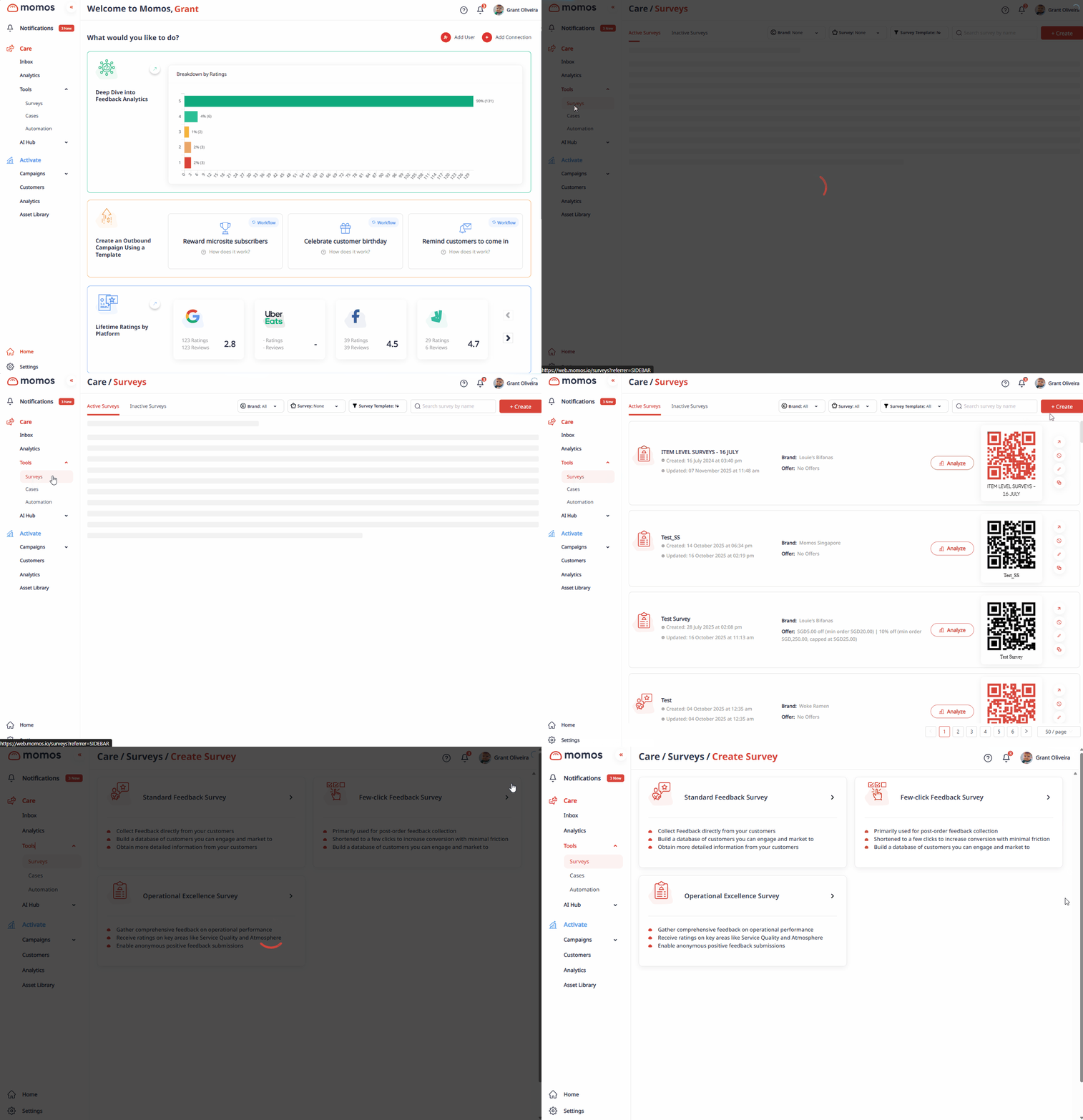
Survey Types
Choose the survey format that best fits your goal, whether it’s collecting quick feedback or gaining deeper insights.
| アンケートの種類 | 最適な用途 | 主なメリット | 顧客の負担 |
|---|---|---|---|
| 標準フィードバックアンケート | 顧客体験に関する詳細な情報 |
| ⭐⭐⭐ 中程度 |
| 数クリックフィードバックアンケート | 迅速で高コンバージョンのフィードバック |
| ⭐ 低(最速オプション) |
| 業務改善アンケート | 店舗のパフォーマンスと運営に関する情報 |
| ⭐⭐ 低〜中 |
Survey Settings
アンケートの種類を選択したら、アンケート設定を入力してください。ここでアンケート名の追加、ブランドの選択、Googleブースティングの許可など、さまざまな設定が行えます。以下をクリックしてすべてのアンケート設定を確認してください。
Survey Settings
Here’s a preview of the Survey Settings layout. Click any item on the right to see what it does and how it affects your survey. You can also find these details anytime by clicking the (?) icon beside each setting in the survey builder.
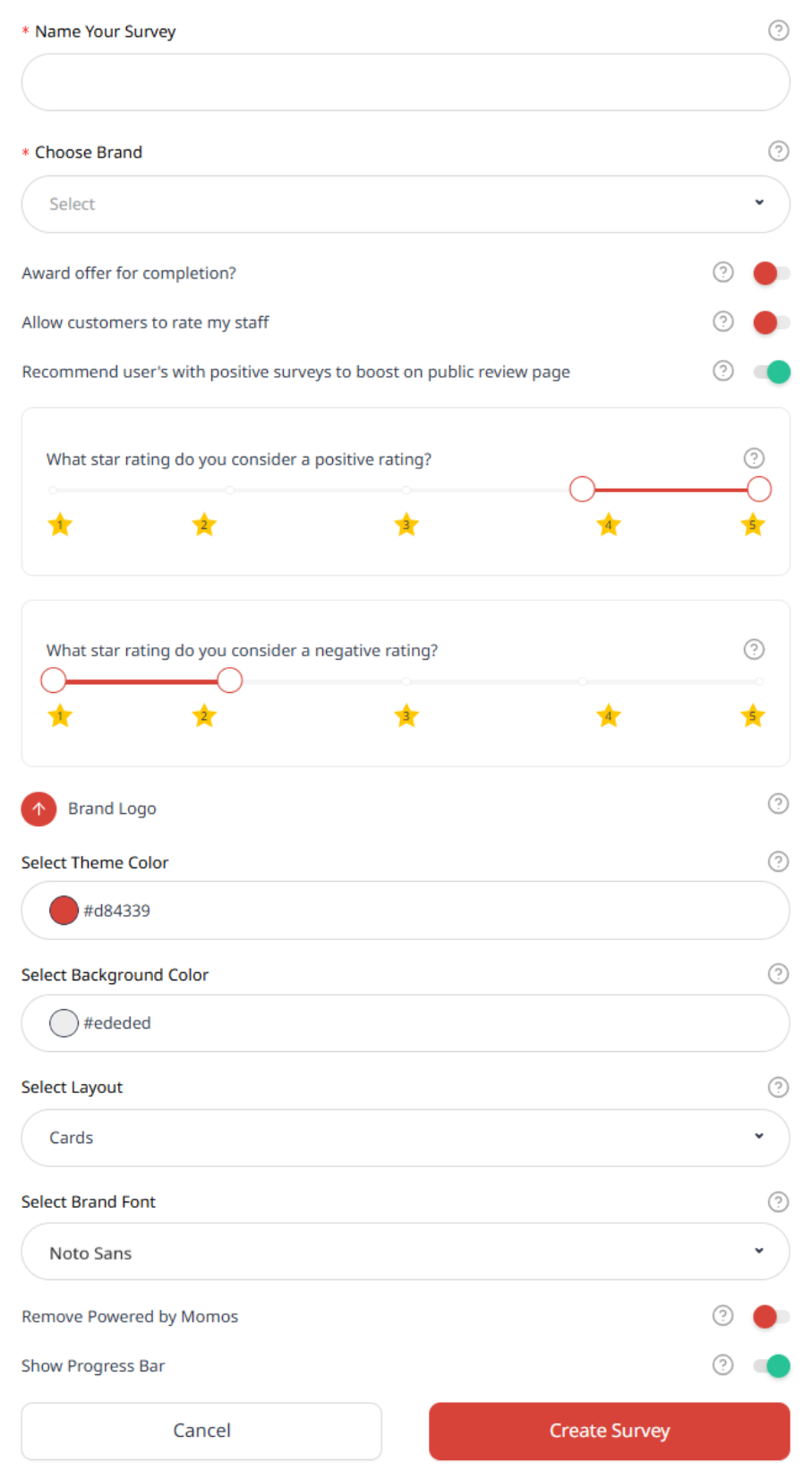 | Name your surveyThe survey name is for internal use only. It helps you manage the survey and view analytics. Customers won’t see it. Choose brand正しいブランドを選択して、アンケートが適切に追跡・整理されるようにしてください。 Award offer for completionアンケート完了後に顧客に報酬を送るにはこれを有効にしてください。既存のバウチャーを選択したり、新しいバウチャーを作成したり、複数のオプションを提供したりできます。 Allow customers to rate staffスタッフのパフォーマンスについて、優れたサービスから改善が必要な点までフィードバックを収集します。 Enable boosting on public review pageブースティングは、ポジティブな体験をした顧客に公開レビューを促します。ポジティブな評価が付いたときにブースティング画面が表示されます。 Positive star ratingDefine what rating counts as “positive” to control question visibility and when boosting appears. すべての星とemoji のスケールは5ポイントに正規化されます。 Negative star ratingDefine what counts as a negative rating to customize follow-up questions. すべての評価タイプは5ポイントスケールに正規化されます。 Upload logoアップロードしたロゴは、ウェルカムページ、個人情報ページ、サンキューページに表示されます。 Theme colorこの色は、プログレスバーやページボタンなどのアンケートの主要要素全体に使用されます。 Brand font選択されたフォントは、見出しや本文テキストを含むアンケート全体に適用されます。 Powered by MomosShows the “Powered by Momos” badge on the Welcome and Thank You pages. You can toggle this on or off. Show progress barユーザーが進捗を追跡するのに役立ち、アンケートの完了率を向上させることができます。 Select layoutデフォルトまたはカードのレイアウトから選択してください。近日中にさらに多くのレイアウトが追加される予定です。 |
プリセットアンケートページ
新しいアンケートを作成すると、Momosは自動的に8つのプリセットページを含めます。これらのページは、完全な送信準備済みのアンケートを作成するために必要なすべての必須フィールドを提供します。
引き続き完全な柔軟性があります。プリセットページはあくまでも出発点です。独自のページのデザイン方法については、こちらをご確認ください: カスタムアンケートページの作成
ページ1:ウェルカムページ
Page 2: Service Type
ここにスクライブまたはコンテンツを追加
ページ3:ロケーションを選択
ここにスクライブまたはコンテンツを追加
ページ4:デリバリープラットフォーム
ここにスクライブまたはコンテンツを追加
ページ5:体験評価
ここにスクライブまたはコンテンツを追加
Page 6: Personal Information
ここにスクライブまたはコンテンツを追加
Page 7: Boost Page
ここにスクライブまたはコンテンツを追加
Page 8: Thank you
ここにスクライブまたはコンテンツを追加
ページ1:ウェルカムページ
ウェルカムページはアンケートの最初のページです。ここでは以下を行えます:
ブランドロゴの表示または非表示

ブランド名の表示または非表示
テキストボックスで言いたいことを編集することもできます。

オファーを選択(有効な場合)
設定ページで「完了時にオファーを付与」を有効にした場合、このアンケートを完了した際に付与するオファーを選択できます。

ドロップダウンから「新しいオファーを追加」を選択して新しいオファーを作成することもできます。これによりサイドバーが開き、オファーを作成できます。Momosオファーの詳細についてはこちら:

タイトル アンケートのタイトルを表示または非表示にするか選択できます。タイトルボックスのテキストを編集することもできます。
サブタイトル アンケートのサブタイトルを表示または非表示にするか選択できます。サブタイトルボックスのテキストを編集することもできます。
ボタンタイトル ボタンに表示するテキストを決定します。

背景画像をアップロード
ランディングページ用の画像またはGIFをアップロードするために選択します。
背景の透明度
スライダーで背景の透明度を設定します。

ページ2:注文の種類
このページではユーザーが注文方法を選択できます。最初は飲食(F&B)の注文向けに設定されていますが、ビジネスに合わせてオプションをカスタマイズして名前を変更できます。
タイトル
編集可能なテキストボックスに入力してページ上部のテキストをカスタマイズします。

注文オプション
このセクションには3つのトグルと編集可能なテキストボックスが含まれます:
- 店内飲食
- デリバリー(このオプションを選択するとページ4 - デリバリープラットフォームが表示されます)
- テイクアウト
各オプションのテキストを変更し、有効または無効にするかどうかを選択できます。

注意:利用可能なオプションが1つだけの場合、ユーザーはアンケートの回答時にこのページを見ません。利用可能な唯一のオプションが自動的に選択されます。
ページ3:ロケーションを選択
このページでは、ユーザーがブランドの利用可能なロケーションのリストを見つけます。訪問したロケーションを示すためにオプションの1つを選択できます。
タイトル
編集可能なテキストボックスに入力してページ上部のテキストをカスタマイズします。

ユーザーが選択できるオプションとしてロケーションを表示するかどうかを選択します。
これらのロケーションはブランドのビジネス情報ページに表示されているものと一致します。ロケーションを追加するには、そちらで行う必要があります。

注意:利用可能なオプションが1つだけの場合、ユーザーはアンケートの回答時にこのページを見ません。利用可能な唯一のオプションが自動的に選択されます。
ページ4:デリバリープラットフォーム
このページはページ2で「デリバリー」が選択された場合にのみ表示されます。ユーザーはここで注文に使用したデリバリープラットフォームを選択できます。
You can hide this page by unchecking the "Show this page?" checkbox.

タイトル
編集可能なテキストボックスに入力してページ上部のテキストをカスタマイズします。

フードデリバリープラットフォーム
オプションとして表示するプラットフォームを選択します。これらのオプションはブランドのビジネス情報の「サードパーティリンク」から来ており、そこで閲覧・編集できます。
このページのオプションはページ3で選択したロケーションによって異なります [ページ3のリンクを挿入]

注意:オプションにはすべてのロケーションから利用可能なすべての選択肢が含まれます。例えば、ロケーションAにDeliverooとGrabFoodしかない場合、他のオプションは表示されません。選択したロケーションで1つのオプションしか利用できない場合、このページはスキップされます。
ページ5:体験評価
このページでは、顧客が体験を評価し、それがレビュースコアを決定します。
アンケートの設定ページで、何が「ポジティブ」または「ネガティブ」なレビューとされるかを設定できます。 [設定リンクを挿入]

タイトル
ページ上部のテキストをカスタマイズします。これが顧客の体験の総合評価であることを明確にすることをお勧めします。

評価質問タイプを選択
さまざまな評価タイプから選択でき、すべて1〜5のスケールに正規化されます。
さまざまな評価タイプと1〜5つ星形式への変換を以下に示します:
星タイプ:ユーザーが星を使って体験を評価

- 1〜3つ星:
- 換算:
- 1つ星 = 1つ星
- 2つ星 = 3つ星
- 3つ星 = 5つ星
- 換算:
- 1〜5つ星:
- これはデフォルトのオプションです。
- 1〜10つ星:
- 換算:
- 1と2つ星 = 1つ星
- 3と4つ星 = 2つ星
- 5と6つ星 = 3つ星
- 7と8つ星 = 4つ星
- 9と10つ星 = 5つ星
- 換算:
絵文字スライダー:5つの絵文字で体験を表示

5つの絵文字は1〜5のスケールを表し、絵文字の表情が評価を示します。
いいね / よくない:2つのオプションの選択

- よくない = 1つ星
- いいね = 5つ星
ページ6:体験の詳細
体験の詳細ページでは、顧客がレビューに詳細情報を追加できます。
左上の「このページを表示しますか?」のチェックを外すことでこのページを非表示にできます。

タイトル
上部のテキストをカスタマイズします。

キャプション
トグルで顧客が自由記述欄に追加のフィードバックを残せるようにします。ヘッダーテキストを編集できます。有効にすると、これは必須フィールドになります。

ここに残されたコメントはMomosのAIによって分析・分類され、受信箱とCare Analyticsページに表示されます。

画像をアップロード
顧客がレビューに画像を追加できるかどうかを決定します。すべてのファイルタイプが許可され、各ファイルは100MB未満です。最大25ファイルをアップロードできます。これを必須フィールドにすることができます。

訪問日
顧客が訪問日を選択できるかどうかをトグルします。ヘッダーテキストを編集して必須にすることができます。

訪問時間
顧客が訪問時間を選択できるかどうかをトグルします。ヘッダーテキストを編集して必須にすることができます。

注文参照番号
顧客が参照番号を提供する必要があるかどうかを決定します。ヘッダーテキストを編集して必須にすることができます。

ページ7と8:体験タグ
体験タグページでは、顧客がカスタマイズ可能なタグの選択から選ぶことができます。
このページはオプションです。左上の「このページを表示しますか?」のチェックを外すことで非表示にできます。

タイトルとキャプション
ページ上部のテキストとタグリスト上のテキストを編集します。これを表示または非表示にするか選択できます。

注文タイプによって異なりますか?
タグが顧客の注文タイプに依存するかどうかをトグルします。有効にすると、「タグの追加または編集」セクションがページ2の注文タイプに分割されます。

タグの追加または編集
顧客が選択できるタグをカスタマイズします。

ページ9:個人情報
このページでは、顧客が連絡先情報を提供します。
ロゴを表示
このページにブランドのロゴを表示するかどうかを選択します。
キャプション
キャプションテキストを表示するかどうかを決定し、編集可能なテキストボックスにメッセージを書きます。
名前
レビュアーの名前のテキストボックスラベルを編集します。

オファーを選択(有効な場合)
「完了時にオファーを付与しますか?」が有効になっている場合、このドロップダウンからアンケート完了時に報酬として付与するオファーを選択します。

レビュアーのメールアドレスのテキストボックスラベルを編集します。
電話番号
顧客が電話番号を残せるかどうかを決定します。テキストボックスラベルを編集し、必須かどうかを選択します。

利用規約
利用規約のチェックボックスを表示するかどうかを決定します。編集可能なリッチテキストボックスで利用規約をカスタマイズし、必須かどうかを選択します。
ボタンテキスト
ボタンテキストラベルを編集します。

ページ10:Googleでブースト
このページはレビュアーにGoogleでフィードバックを残すよう促します。このページが表示されるためには、3つの条件が満たされる必要があります:
選択したロケーションはMomosを介してGoogleビジネスページに接続されている必要があります。
レビューは「ポジティブな評価」の基準を満たす必要があります。
「ポジティブなアンケートを持つユーザーにGoogleページでのブーストを勧める」の設定を有効にする必要があります。

ヘッダーテキスト:ヘッダーテキストをカスタマイズし、表示するかどうかを選択します。
メインタイトル:メインタイトルテキストをカスタマイズし、表示するかどうかを選択します。
クリップボードへコピーするテキスト:クリップボードテキストをカスタマイズし、表示するかどうかを選択します。
レビューテキストを表示:コピーされたレビューテキストを表示するかどうかを決定します。
ボタンテキスト:ボタンテキストを編集します。
Googleへの自動リダイレクト: アンケートは顧客をGoogleレビューに自動的にリダイレクトし、レビューの投稿を促します。

有効にすると、リダイレクトまでのカウントダウンを調整することもできます。

このように表示されます:

ページ11:ありがとうございます
アンケートの最終ページのカスタマイズオプションは以下の通りです:
ロゴを表示:ブランドのロゴを表示するかどうかを選択します。
タイトル:メインテキストをカスタマイズし、表示するかどうかを選択します。
フォローテキスト:サブテキストをカスタマイズし、表示するかどうかを選択します。

ソーシャルリンク:表示するソーシャルメディアプラットフォームのボタンを選択します。これらのリンクはビジネス情報ページで追加できます。

GIFアニメーションをアップロード:ソーシャルメディアボタンの下に画像またはGIFアニメーションを追加します。

この記事は役に立ちましたか?
それは素晴らしい!
フィードバックありがとうございます
お役に立てず申し訳ございません!
フィードバックありがとうございます
フィードバックを送信しました
記事の改善におけるご協力ありがとうございます。