Ask Rockie questions about your guest feedback in plain language. Get answers in seconds as a chart, table, KPI summary, or the guest comments behind them.
TABLE OF CONTENTS
- What’s New?
- Start a conversation with Rockie
- Example questions to ask Rockie
- How to get better answers from Rockie
- Turn on Rockie Chat for your team (Admins)
- How credits work
- FAQs
What’s New?
- Rockie Chat is now available to all users. Admins choose which User Roles get access.
- New Rockie search bar on the Home screen.
- New data: brand benchmarking, Alfie Chat, survey engagement, customer data and recovery.
Start a conversation with Rockie
There are two ways to access Rockie: (1) on the homepage or (2) by clicking "Rockie" on the side navigation panel.
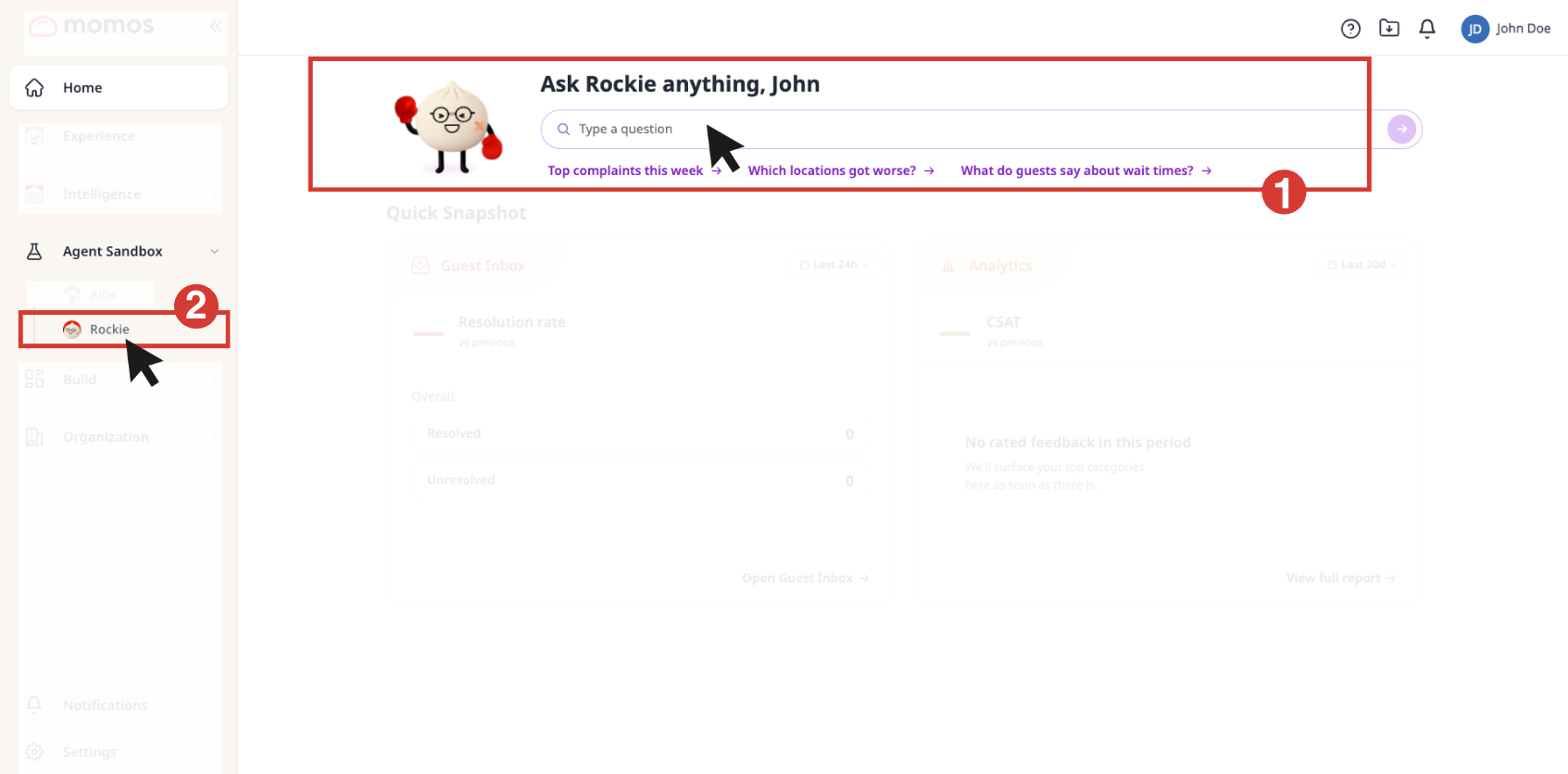
✎ Note: Access to Rockie chat is set by account admins. See [Turn on Rockie Chat for your team (Admins)] before turning it on.
Example questions to ask Rockie
Ask Rockie in plain language, the way you’d ask an analyst. Include the time range, locations or channels you care about, and you’ll get an answer you can act on.
Sample questions
- A quick performance check: How did my locations perform last week compared to the week before?
- Compare locations or groups: Rank all locations by OSAT this week with week-over-week movement. Rockie knows your regions, districts and ownership groups, so you can compare groups as well as individual stores.
- What guests are saying: What are the top complaint themes at my lowest-performing location this month? Show me negative reviews mentioning wait times.
- A menu item that needs attention: Find all complaints about [menu item] from the last three months.
- A summary for leadership: Give me an executive summary of last week's guest feedback, using Google and Yelp only.
- How you compare with your brand (new): How does my location's OSAT compare with the brand average this month?
- What guests ask Alfie (new): What are guests asking Alfie about most at my location?
- Where guests drop off in surveys (new): Where do guests stop answering our survey, and how long does it take to complete?
- Guest trends and recovery (new): How many unhappy guests did we recover last month, and how many are still recoverable?
- The raw data: Ask for the underlying survey or review rows with the columns you need. Rockie returns a table you can download as a CSV.
- Follow-ups: Keep building on the same conversation. Break results down by service type, change the date range, or repeat the analysis for another region without starting over.
How to get better answers from Rockie
- Say what, where and when. Include the metric, location and dates. Instead of “How are we doing?”, try “How did my Austin location’s rating change this month?”
- Start simple, then refine. Ask a basic question, then add to it: “Only Google and Yelp” or “Split by delivery and dine-in.” No need to start over.
- Say how you want it. Ask for a ranked list, a table, or a short summary to share with your manager.
- Ask to see the proof. Say “Show me the guest comments behind this” to see the reviews, locations and dates.
- Name your brand. If your account has more than one brand, include the name so Rockie stays on that one.
- Start a new chat for a new topic. Long chats use more credits per answer (see How credits work). If a chat gets long, Rockie offers to shorten it.
- Rate the answer. A thumbs up or down tells us what to improve.
Turn on Rockie Chat for your team (Admins)
Admins choose which User Roles can use Rockie Chat. Admins always have access.
⚠ Read this first: Rockie shows users all data for their assigned locations, even data their role can’t see elsewhere in Momos, such as surveys or cases. Only turn it on for roles that should see everything for their locations.
How credits work
Credits measure how much work Rockie does to answer your questions. Simple questions use fewer credits, and long conversations use more.
Rockie Chat is included in your Momos plan. During launch there are no credit limits. We're learning how teams use Rockie, and we'll let you know well before any limits apply.
Admins: see your team’s usage in Settings > Usage. Other users can’t see this data.
FAQs
Who can see my conversations?
Your Rockie Chat history is yours. Other users on your account can't open your conversations.
Rockie said it can't answer my question. Why?
Rockie only answers from your Momos data. If the data isn't available, or the question falls outside the locations you can access, he'll say so instead of guessing. Try rephrasing with a specific time range, metric or location.
I'm a non-admin. Why can't I see usage data about my team?
Information about how people use Momos, like who has logged in and how often, is only available to Admins
Was this article helpful?
That’s Great!
Thank you for your feedback
Sorry! We couldn't be helpful
Thank you for your feedback
Feedback sent
We appreciate your effort and will try to fix the article