We're releasing a new Categories & Incidents experience! Here's what's changing, why it matters, and how to get the most out of it.
TABLE OF CONTENTS
Why we upgraded
Managing feedback across hundreds of locations is hard and V1 didn’t have the level of customization for the amount of volume locations get.
Incidents could balloon to thousands of hyper-specific, equally critical tags, making it impossible for you to take targeted action
Positive feedback was never captured, so you could never see what was working
Classification definition was a blackbox, so you never knew why some phrases were captured and some weren’t
No structure – "Wrong Order" and "Poor Ambiance" sat side by side, as if they were the same problem
Categories V2, powered by Rockie, fixes all of this.
Incidents and compliments now sit inside a clean three-level structure – Category, Sub-category, Incidents/Compliments – so everything has a home and reports make sense at a glance. A few things that are now different:
Full picture. Rockie captures both problems and praise, making your data useful for rewards programs, not just damage control.
Clarity over volume. Fewer, better-calibrated tags – and Critical actually means critical.
Your taxonomy, your rules. Rename tags, merge duplicates, add new ones, or let Rockie flag emerging patterns automatically. No tickets, no waiting.
A New Taxonomy
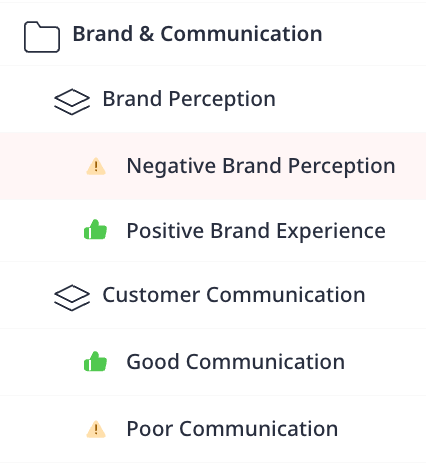
Categories V2 introduces a three-level hierarchy: Category, Sub-category, and Tag. Categories are the broadest groupings, such as Brand & Communication. Sub-categories sit underneath and provide more specific context. Tags are the most granular level — these are the individual incidents and compliments Rockie classifies your feedback into, such as Missing Items or Great Service. Every tag is classified as either an incident (a negative signal) or a compliment (a positive signal).
See: Taxonomy tree showing Category > Sub-category > Tag
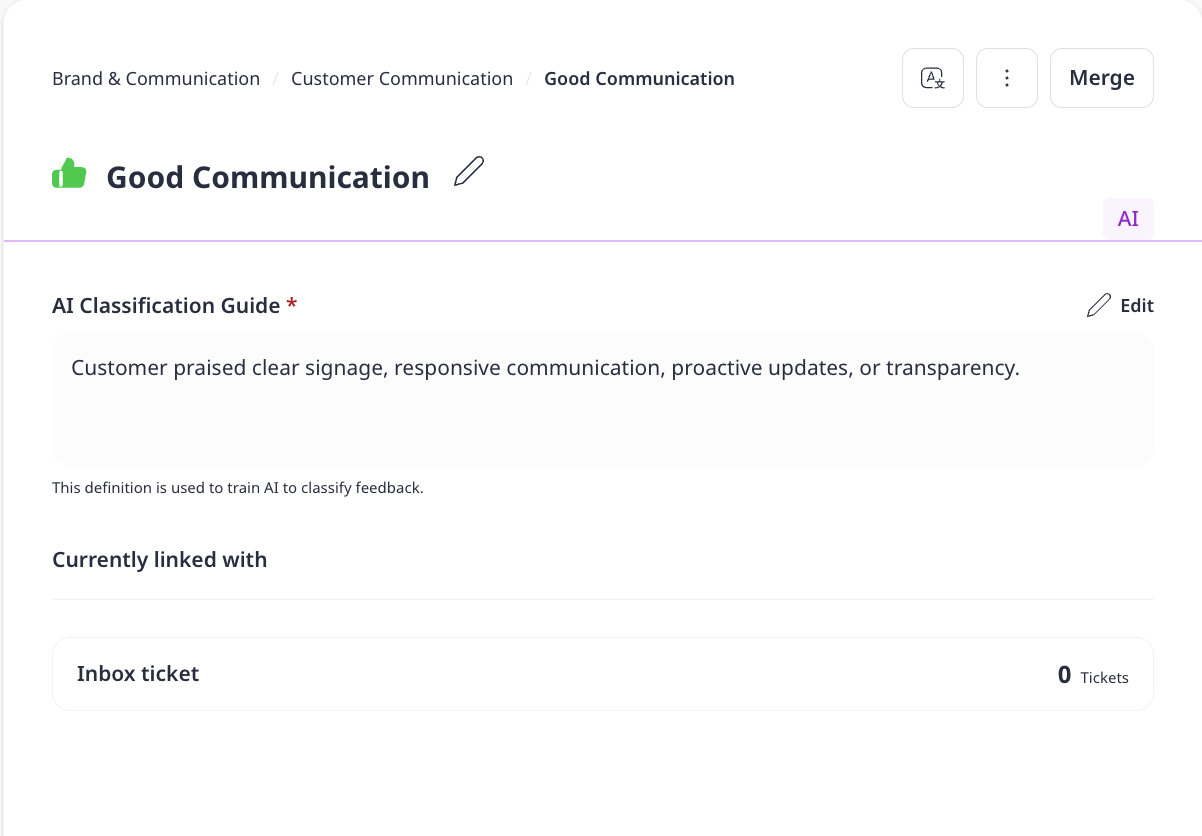
See: Example of a Compliment tag
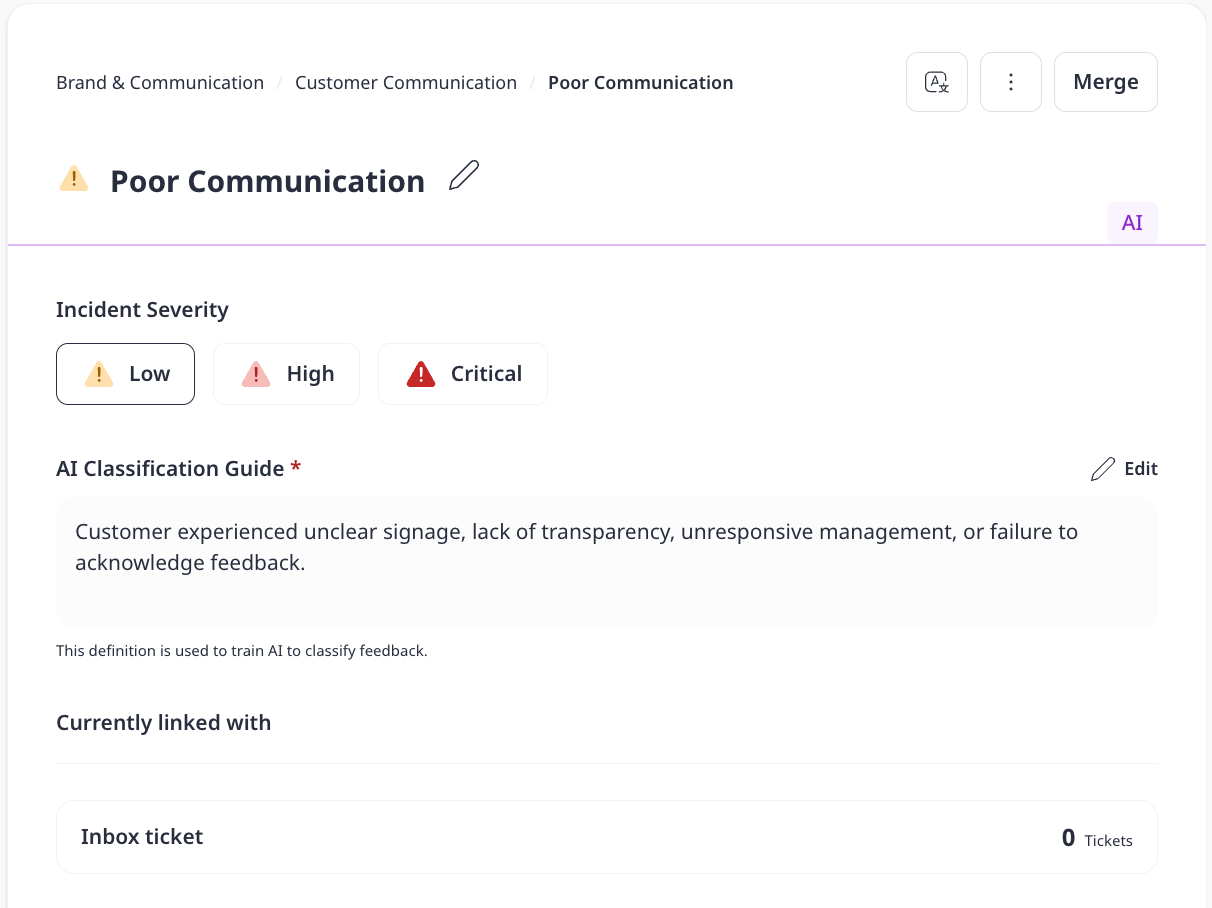
See: Example of an Incident tag
Customizing Your Taxonomy
Creating Categories, Subcategories, and Tags
Your taxonomy is fully customizable to match how your business works. To access it, go to Settings and click Categories. From here you can browse your full Category > Sub-category > Tag tree and make changes at any level.
If your brand has incidents or compliments that aren't covered by the provided taxonomy, you can create your own. Select a sub-category, click Add incidents/compliments and give it a name and description. You can choose to apply the new tag to incoming feedback only, or to re-classify your historical data as well.
See guide: Create Categories, Subcategories, and Tags
Editing Tag Names and AI Classification Guides
Clicking on any tag opens its detail panel. You can edit the tag's name and its AI classification guide — the description Rockie uses to decide which feedback gets tagged here.
See guide: Edit Tag Names and AI Classification Guides
Moving Tags
If a tag is sitting under the wrong sub-category, you can move it instantly using the Move option.
See guide: Move Tags Between Subcategories
Merging Tags
If you have two tags that are conceptually related, use Merge to combine them into one — your historical data is remapped automatically.
See guide: Merge and Unmerge Similar Tags
Deactivating Tags
If you want to retire a tag, use Deactivate. The tag moves to a deactivated state and stops being used for classification. You can restore it at any time from the Archived tab.
See guide: Deactivate and Restore Tags
Severity
Every incident tag in V2 carries a severity level — Critical, High, or Low. Severity controls how incidents are prioritized across your analytics and inbox. You can also customize the labels themselves to match your organization's language — for example, renaming Critical to P1, or Low to BAU. Custom labels flow through everywhere in the product.
See guide: Customize Incident Severity Names
Translation Management
If your team operates across multiple languages, you can add translated names for any tag in your taxonomy. To do this, open the tag's detail panel and click Translate. From there you can add the tag name in languages your team uses.
Once translations are set, your team will see tag names in their own language — so labels always feel familiar regardless of where your team is based. The AI classification continues to run in English underneath.
See guide: Add Translations to Your Taxonomy
AI Discovery
Rockie continuously monitors your incoming feedback for patterns that your taxonomy doesn't yet cover. When he detects a recurring pattern, he will surface a suggested new tag for you to review. You can approve suggestions one by one from the review queue in Settings or enable Auto add to let Rockie add new tags to your taxonomy automatically as your feedback evolves.
See guide: Review and Approve AI-Suggested Tags
Inbox Integration
Categories V2 is reflected directly in your inbox. When you open any ticket, you will see the tags Rockie has assigned to that piece of feedback displayed at the top. Incident tags appear in their respective color and compliment tags appear in green.

What you can do with tags in the inbox depends on your role. Agents can see tags on every ticket and use them to understand context and prioritize their responses, but cannot modify them. Tag editing is reserved for admins to protect the integrity of your data, since these tags feed into performance reporting.
Managing and Reporting Tags in the Inbox
For Agents
If you are an agent and believe a tag is incorrect, flag it to your admin for review .
See guide: Report an Incorrect Tag
For Admins
If you are an admin, you can remove a tag, swap it for a different one, or add tags that Rockie may have missed. All changes are recorded in the activity log.
You may also notice AI suggested tags. These appear when your account has manual approval turned on in AI Discovery settings. This means Rockie has identified a new pattern in your feedback but is waiting for an admin to approve it before adding it to your taxonomy. As an admin, you can accept the suggestion — which adds the tag to your taxonomy and applies it to that ticket — or dismiss it. Agents cannot confirm on suggested tags.
See guide: Manage Feedback Tags in the Inbox
Inbox Filters
You can filter your inbox by any tag in your taxonomy using the filter section in inbox . Select a Category, Sub-category, or individual Tag to narrow your view to only the tickets that match. You can also filter by severity to focus on your most critical incidents first.
See guide: Filter Inbox Tickets by Category and Tag
Migration
When your account migrates to categories V2, Momos will re-classify your last three months of feedback. During the transition period, a toggle is available at the top of your Categories settings (see guide). This switches your inbox between V1 and V2. Use it to explore V2 at your own pace while keeping V1 available as a reference. V1 will be sunset on September 1st. After that date, V2 becomes the only view and the toggle will no longer be available.
Getting Help
If you have any questions about your taxonomy setup or the migration, reach out to your Customer Success manager directly. You can also contact us at support@momos.com and we will make sure your setup is exactly right before anything changes.
FAQs
Who is Rockie?
Rockie is Momos' AI Intelligence Agent – giving brands the best CX intelligence analyst they ever hired. Rockie fuses guest signals (e.g., sentiment, reviews, etc.) with operational data (e.g., tickets, purchase behaviors, etc.) to surface root causes, benchmark locations, and recommend next steps. In the Guest AI Platform, Rockie sits between Alfie (Experience) and Rosie (Operator) as the Intelligence layer.
Can I still access V1?
Yes — a V1/V2 toggle is available at the top of your Categories settings page throughout the transition period. Switching it moves your inbox between V1 and V2. V1 will be fully retired on September 1st.
Do I need to do anything before V1 is sunset?
Not urgently. When your account migrates, Momos will re-classify your last three months of feedback under V2.
Will my historical data change?
V2 re-classifies your last three months of feedback. Anything older than three months is not classified under V2 unless you request an extended backfill — speak to your Customer Success manager for that.
Some of my old tags look different. What happened?
Your existing tags have been migrated into the new three-level structure. Where possible, your familiar tag names have been preserved. Some may have been reorganized under a different sub-category to fit the new hierarchy, or slightly renamed for consistency. You can review and adjust your taxonomy at any time in Settings.
Why are fewer things flagged as critical now?
V1 flagged a high volume of incidents as critical by default, which made it hard to know what actually needed attention. V2 uses a more calibrated approach to severity, and you can configure the levels yourself in Settings to match what critical, high, and low mean for your business. e
What is the AI classification guide?
It's the description Rockie uses to decide which feedback gets tagged under a given incident or compliment. In V1 this was invisible. In V2 it's fully visible and editable.
Why do some of my tag name or AI classification guide edits not go through?
Edits that significantly change the meaning of a tag name or AI classification guide are blocked — for example, changing "Missing Items" to "Rude Staff." This prevents unintended effects on your inbox, analytics, and reporting. If you want to track a genuinely different concept, create a new tag for it instead and reclassify historical feedback if needed.
What is AI Discovery?
Rockie monitors your incoming feedback for patterns your taxonomy doesn't yet cover. When he detects something recurring, he surfaces a suggested new tag for you to review and approve. You can also enable Auto add to let Rockie expand your taxonomy automatically.
What if Rockie adds a tag I don't want?
You can dismiss any AI suggestion from the review queue in Settings, or deactivate a tag at any time if it was added automatically and isn't useful. Deactivated tags are remembered by the system and won't be re-suggested.
What's different about how tags appear in the inbox?
In V1, tags were informational — you could see them and filter by them, but nothing more. In V2, admins can remove or reassign tags on individual tickets, and accept AI suggested tags directly from the inbox. Agents can flag a misclassification for admin review.
What are AI suggested tags in the inbox?
These appear when your account has manual approval turned on in AI Discovery settings. It means Rockie has spotted a new pattern but is holding it for your review before adding it to your taxonomy. As an admin, you can accept it — which adds the tag to your taxonomy and applies it to that ticket — or dismiss it.
Why can't agents edit tags?
Tags feed into performance reporting and team incentives, so editing is restricted to admins to protect data integrity. If an agent believes a tag is wrong, they can flag it for admin review directly from the inbox.
Isn't this the same as the Category and Sub-category I already have?
Previously, Categories and Incidents are related but not connected. Now with Categories V2, each Incident and Compliment will be nested into a corresponding Sub-Category and Category.
What happens to the Categories & Keywords and Incidents Analytics tabs after 1st September?
Both run on the current version (V1), so nothing changes for them during this transition phase. They'll keep working as usual until they're retired on September 1 as well.
Was this article helpful?
That’s Great!
Thank you for your feedback
Sorry! We couldn't be helpful
Thank you for your feedback
Feedback sent
We appreciate your effort and will try to fix the article