We're introducing Location Properties & Hierarchies, a single place to describe how your business is organized, from regions and markets down to each store.
TABLE OF CONTENTS
Why we built it
- How it works
- Where to find it
- Create your properties
- Property types
- Give a location its values
- Update many locations at once
- Import values from a file
- Build your hierarchy
- Hierarchy rules
- Fix values that don't fit
- Find locations in the table
- Moving from location groups
- Where Momos uses your hierarchy
- Filter your Inbox by property
- Getting help
- FAQs
Why we built it
Running hundreds of locations is easier when your tools understand how your business is organized. Today, most teams describe their locations with location groups, naming conventions like "FZ – Store Name", and spreadsheets kept on the side.
Location Properties & Hierarchies brings all of that into one place, and helps you:
- Structure your locations in levels, so Momos knows a district sits inside a market and a market inside a region.
- Maintain one source of truth that's quick to update, one location at a time, in bulk or from a file.
- Compare parts of your business and spot where problems cluster, starting with Inbox filters.
How it works
Properties are the details you track for every location, like Region, District, Franchisee or Store format. Values are each location's answers, like Region = West or Store format = Drive-thru.
Hierarchies connect properties into levels, so Momos knows which values sit inside which. For example, a hierarchy might run Region › Market › District. Once it's set up, Momos knows that every store in the Austin district also belongs to the Texas market and the West region.
Your levels don't have to be geographic. Use whatever matches how your business runs, like franchisee, ownership group or store format.
Where to find it
Go to Organization › Company Profiles and open the Location Properties & Hierarchies tab. The page opens on your properties and hierarchies, where you create and organize them.
To see and edit each location's values, click Switch to location table at the top. It shows one row per location and one column per property. Click Back to property list to return.
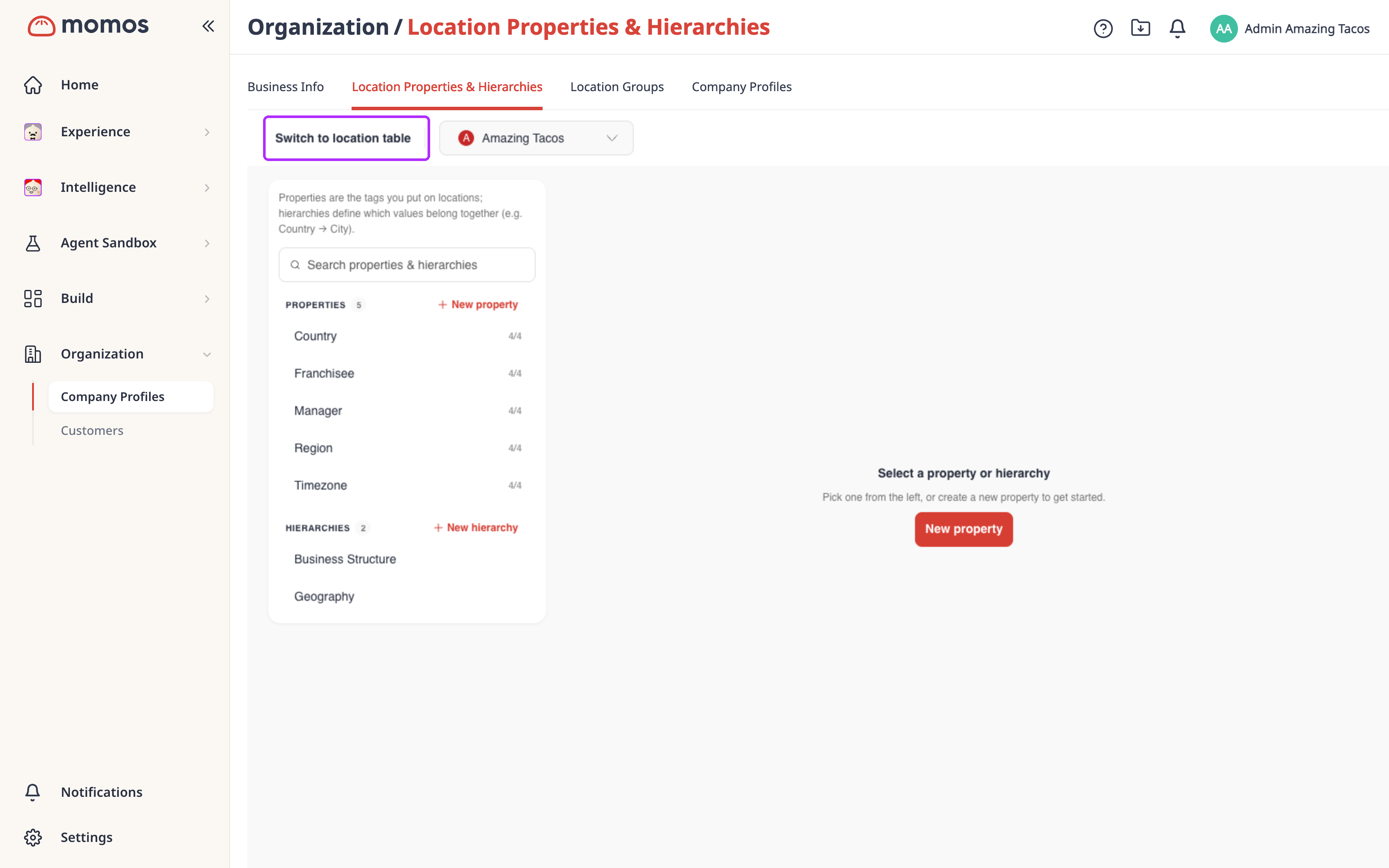 (Switch to location table toggles between the two views.)
Create your properties
Properties belong to a brand, so start by choosing the brand you're configuring. If you have several brands, set each one up in turn.
Property types
Each property has a type, which decides what kind of value a location can hold.
| Type | Use it for | Example |
|---|---|---|
| Single select | One value per location, from a list | Region = West |
| Multi select | Several values per location, from a list | Services = Delivery, Catering |
| Free text | Anything that isn't a fixed list | Store code = TX-014 |
| Date | A date | Opening date = Mar 3, 2025 |
Give a location its values
Once your properties exist, fill in each location's values in the location table. Changes stay as a draft until you click Save, so you can review them first.
Update many locations at once
To give the same value to several locations, select them in the location table and apply the value in one go.
Import values from a file
For hundreds of locations, it's often faster to fill in a spreadsheet and import it. An import only adds or changes property values for locations you already have. It can't add, delete or rename locations, so add new locations in Business Info as usual.
Account admins can import today, and permissioned managers will be able to soon.
Build your hierarchy
A hierarchy links your properties into levels, from broad to narrow. Then you link the values, so Momos knows which ones sit inside which.
Hierarchy rules
A few rules keep every hierarchy consistent:
- One parent per value. A value sits under one parent only. Texas can belong to West, but not to West and South.
- Reuse properties freely. One property can appear in several hierarchies, like District in both a geography hierarchy and a franchise hierarchy.
- No loops. A level can't sit above its own parent anywhere. If you try, we'll tell you which level is in the way.
- A place for the unknown. Every level has a (Blank) value for locations that don't fit anywhere yet.
- Unlinking is safe. Removing a link never deletes the value, so you can link it again later.
- Conflicts are highlighted, never overwritten. If a change leaves a location's values out of line with a hierarchy, Momos marks them in red instead of changing them. See Fix values that don't fit.
Fix values that don't fit
Sometimes a location's values stop lining up with your existing hierarchies. For example, Celia manages the Midwest. If you move her store to the West region, Celia no longer fits.
Momos never changes the store's values for you. Instead, the value turns red, along with every level below it, and the table can't be saved until it's fixed. This applies to address levels, like country, state and city, too. The only exception is a CSV import, where address mismatches show as a warning and your file's value is kept.
Find locations in the table
The location table has tools to narrow down what you see, find gaps and arrange columns your way.
Moving from location groups
Your location groups keep working exactly as they do today, so you don't need to change anything right away. When you're ready, we can move your groups across for you with a simple tool. Here's how it works:
- A group named with a dash becomes a property and a value. "District - Austin" becomes the property District with the value Austin.
- Groups without a dash go into one property called Location Groups.
- Your groups are copied, not deleted, and running it again is safe.
- After the move, groups and properties don't update each other, so keep editing in Location Properties & Hierarchies from then on.
We plan to retire location groups in the first half of 2027, and we'll confirm the exact date well ahead of time.
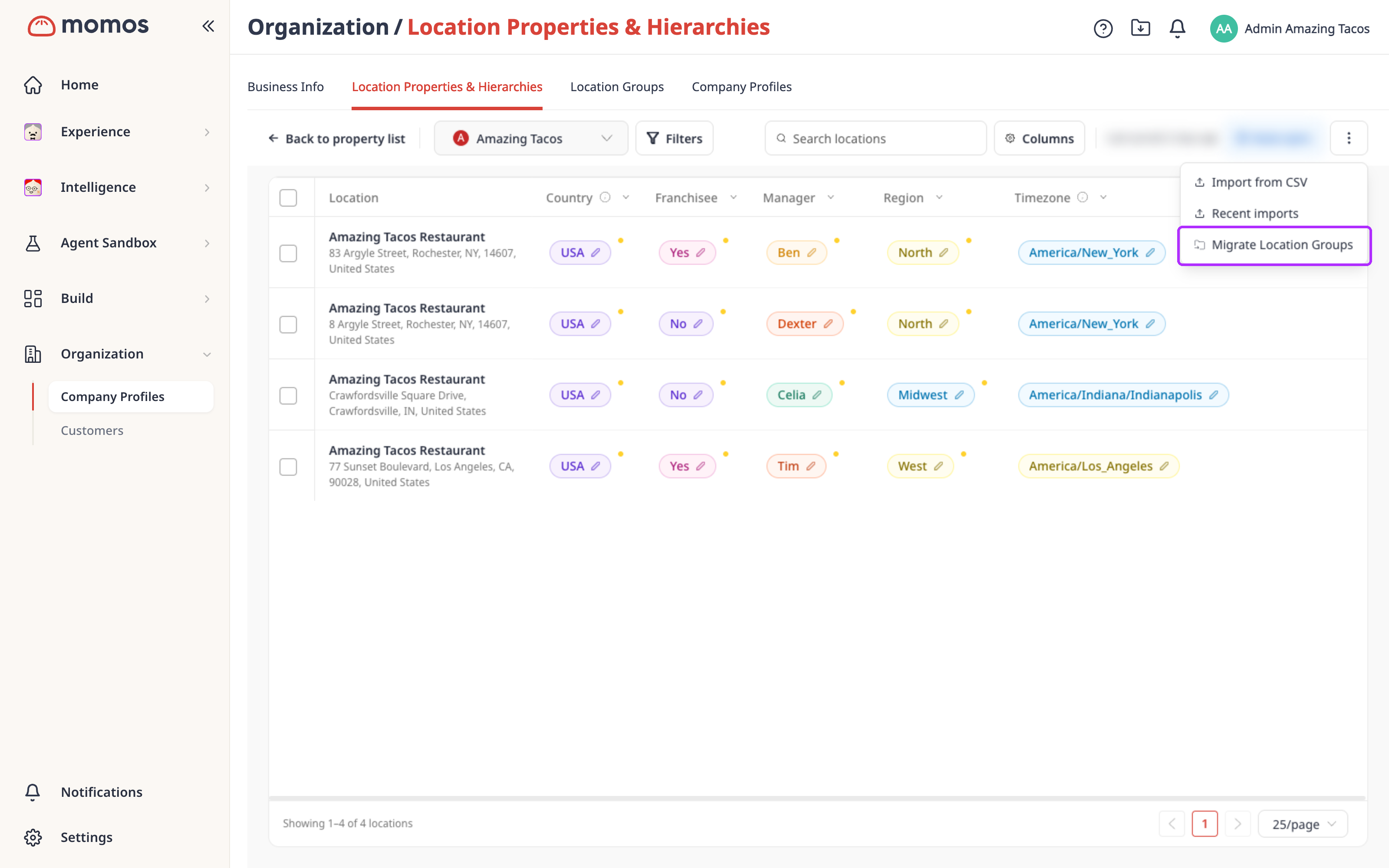
Ask your Customer Success Manager to run it for your account. You may also see Migrate Location Groups in the location table's ⋮ menu. It runs the same tool, and we recommend running it with your Customer Success Manager.
Where Momos uses your hierarchy
Your hierarchy is the foundation for more of Momos. Setting it up now means each feature works for you the day it arrives:
- Inbox filters (available now): narrow your Inbox to a region, a district or any property.
- Location assignment (coming next): send work to the right people based on where a location sits in your hierarchy.
- Dashboard drill-downs (coming next): start from a region and drill down to a district and a single store to find where problems start.
Filter your Inbox by property
Once your locations have values, you can filter the Inbox by any property. People only see tickets from locations their role allows.
Getting help
Questions or feedback? Reach out to your Customer Success Manager, or contact support@momos.com.
FAQs
Who can set up Location Properties & Hierarchies?
- During the limited release, account admins. We'll open it to other roles, like brand and location managers, later on.
Do I lose my location groups?
- No. They keep working as they do today. We plan to retire them in the first half of 2027, and we can move your groups across for you before then.
Can a location have more than one value for a property?
- Yes, if the property's type is Multi select. Otherwise, each location has one value.
Can I have more than one hierarchy?
- Yes. For example, one for geography and one for franchise ownership. A property can appear in several hierarchies.
Do I have to fill in every location by hand?
- No. You can update many locations at once, or import values from a file. We can also fill in address details, like country, state and city, from each location's address; just contact your Customer Success Manager or send us a ticket.
Can I add or remove locations with a CSV import?
- No. An import only adds or changes property values for locations you already have. Add or remove locations in Business Info.
What happens when I open a new location?
- Add it in Business Info as usual, and it appears in the location table automatically. Then fill in its property values, like region or franchisee, so it shows up in the right place in your hierarchy.
What if I remove a value or change my hierarchy?
- Your locations' values are never changed behind your back. Any value that no longer fits is marked in red, and you'll fix those before saving. Show red cells finds them, and Clear values that don't fit blanks them all at once.
Where will I see my hierarchy used?
- Today, in the location table and Inbox filters. Next, in location assignment and dashboard drill-downs.
Was this article helpful?
That’s Great!
Thank you for your feedback
Sorry! We couldn't be helpful
Thank you for your feedback
Feedback sent
We appreciate your effort and will try to fix the article