この記事は、GoogleビジネスプロフィールをMomosに接続する4部構成シリーズの第2部です。
確認は、あなたがそのビジネスの正当なオーナーであることを証明します。Googleは複数の確認方法を提供しています。
方法演選拡張第1:電話による確認。Googleアカウントにサインインし、ビジネスプロフィールにアクセスして「今すぐ確認」を選択してください。
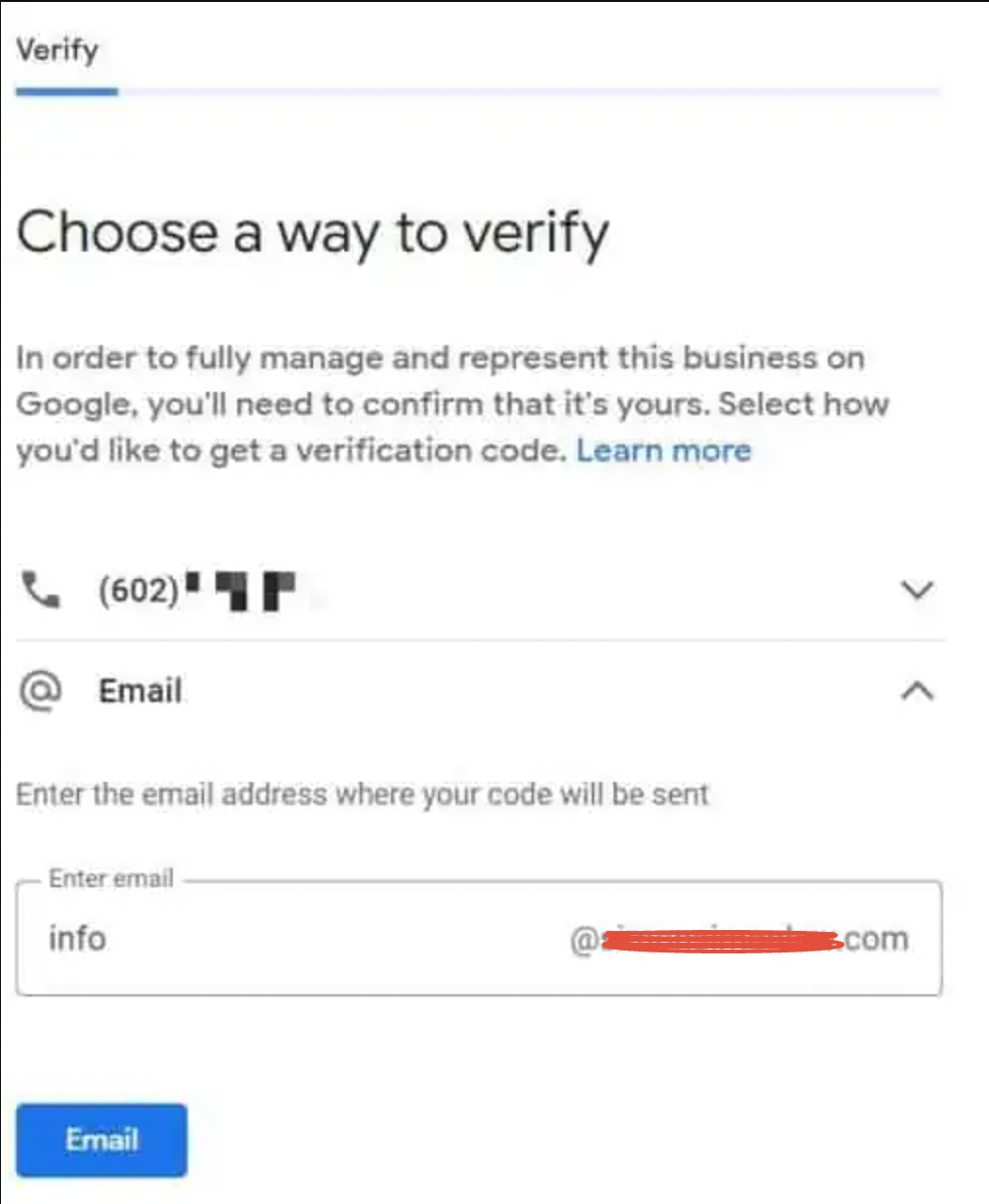
方法演選拡張第2:メールによる確認。会社のメールアドレスを入力し、「確認」をクリックします。
方法演選拡張第3:ハガキによる確認。GoogleがPINコードを郵送します。所要日数は5~14楮日です。
方法演選拡張第4:動画による確認。サインインしてライブ動画確認プロセスを開始してください。
メール
Important: Make sure you have access to the email address on the verification page.
- Open your Google Business Profile.
- Choose the location to verify (if multiple locations).
- Click Get Verified.
- Select the Email option.
- Enter the email address.
- Find the Google Business Profile email; it has your code and activation link.
電話
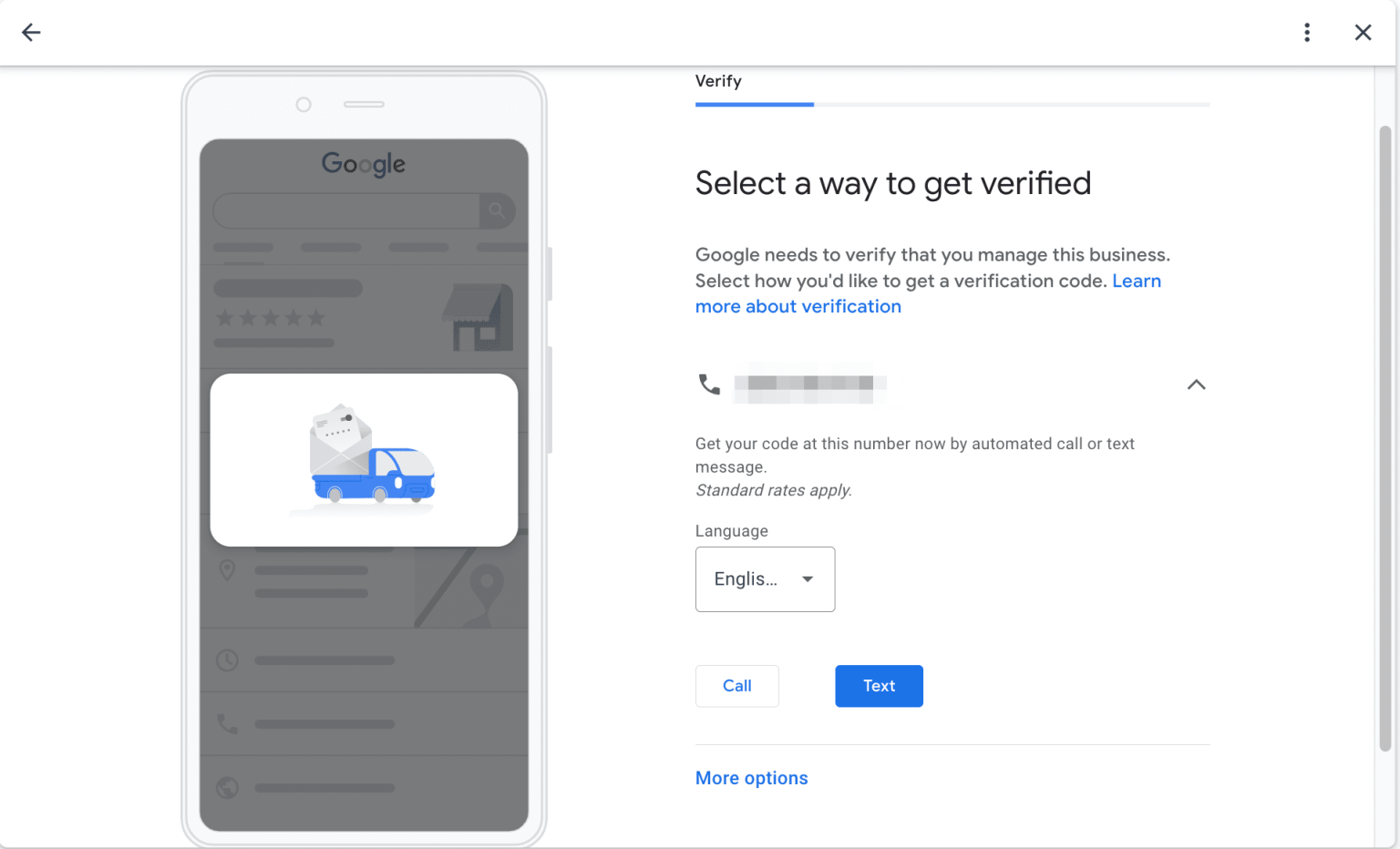
Important: The number must be reachable for calls and text messages.
- Open your Google Business Profile.
- Choose the location you wish to verify (if multiple locations).
- Click Get Verified.
- Choose language.
- Select the preferred verification method: Phone or SMS.
- Answer the call or open the SMS to get the code.
- Google will send you a code. Enter this in the code field.
ビデオ録画(モバイル)
Important: If available, video verification is recommended, as it thoroughly confirms access to your business address. Ensure you have the store’s opening hours and clear exterior photos from multiple angles ready.
ライブビデオ通話
ライブビデオ確認は、Googleが提供する確認方法の一つで、申請しているビジネスの場所へのアクセス権を証明するものです。すべてのビジネスで利用できるわけではありませんが、利用可能な場合はこの方法が推奨されます。
ステップ1:通話の準備
ライブビデオ通話をサポートするデバイスを使用してください。
ビジネスの場所で所有権の証明を提示できるよう準備してください。例:屋外の看板、近隣のビジネス、ブランドの機器・制服、または営業許可証・契約書・請求書など(ビジネス名・住所・日付が記載されているもの)。
ステップ2:通話に参加
準備ができたら、Googleビジネスプロフィールにアクセスしてください。
ビデオオプションを選択し、Googleの担当者との通話に参加してください。
カメラに映り、話す必要がある場合があります。
ステップ3:確認を完了
Googleの担当者の指示に従ってください。
ステップ1で求められた証明書類を提示してください。
確認が完了すると、Googleがプロフィールのステータスを更新します。
次に何が起きますか?
ビジネスはすぐに確認されるか、数日以内に確認される場合があります。
プロセスが完了すると、確認メールが届きます。
郵便
郵便確認は、Googleが提供するビジネスの場所を確認するための方法の一つです。すべてのビジネスで利用できるわけではありませんが、利用可能な場合は以下の手順に従ってください。
ステップ1:ハガキをリクエスト
Googleビジネスプロフィールにアクセスしてください。
郵便確認オプションを選択してください。
ハガキの送付先住所を確認してください(ビジネスの場所と一致する必要があります)。
「ハガキを送る」をクリックしてください。
ステップ2:ハガキを待つ
ハガキは5〜14営業日以内に届く予定です。
この間、住所やビジネス名を変更しないでください。変更すると配送が遅れたりキャンセルされる可能性があります。
ステップ3:確認コードを入力
ハガキが届いたら、Googleビジネスプロフィールにログインしてください。
確認オプションに移動し、ハガキに記載されている5桁のコードを入力してください。
コードを送信すると、プロフィールが確認されます。
次に何が起きますか?
確認が完了すると、ビジネスはGoogle検索とGoogleマップに表示されるようになります。
14日以内にハガキが届かない場合は、新しいハガキをリクエストできます。
この記事は役に立ちましたか?
それは素晴らしい!
フィードバックありがとうございます
お役に立てず申し訳ございません!
フィードバックありがとうございます
フィードバックを送信しました
記事の改善におけるご協力ありがとうございます。